


PDF Reader-PDF Manage
3.856.00 Reviews
App Specs
- Version
- 1.0
- Updated On
- License
- Free
- Downloads
- 500,000+
- Developer
- Avalown
- Categories
- Tools
- Platform
- Android
Screenshots
 Analysis by AppCompare
If you're anything like me, you know the struggle of managing a mountain of PDFs on your mobile device. Enter PDF Reader-PDF Manage, a nifty app that's here to save the day. Before you roll your eyes, hear me out—this app is actually packed with features that make your digital life a whole lot easier.
PDF tasks between connected moments
PDFs often arrive while I’m doing something else: a form comes through a message, a class handout is waiting in cloud storage, or a colleague needs a document sent back. A reader’s usefulness in those moments depends not only on how it handles pages, but also on how easily it fits into the route from receiving a file to reading, marking it up, and sharing it. The app’s reading, annotation, conversion, and sharing tools make that route its central appeal.
That does not mean every part of the workflow is independent of a network. Getting a file from an online account or sending it to someone naturally involves the relevant service and a connection. I’d treat the app as a way to work with PDFs on a phone, not as a replacement for the storage, email, or messaging apps that move documents between people. If I know I’ll need a document somewhere with unreliable reception, I would make sure it is available on the device before leaving.
A practical fit for a phone-sized workflow
I can see this being handy for a student who needs to mark up a reading during a commute, or for someone reviewing a document before a meeting. On a small screen, highlighting a passage or adding a short note is more practical than trying to rewrite the file’s contents. For longer editing sessions, a tablet or computer may still be more comfortable; the phone version is strongest when I need to check something, make a quick annotation, or keep a document moving.
A useful habit is to give files clear names before sorting them into folders. Folders help with broad groups such as coursework or receipts, while names that include a subject or purpose make the search function more useful later. I would also review a marked-up document before sharing it: annotations can be helpful to the recipient, but they may not belong in a clean copy intended for filing or submission.
Features That Make Life Easier
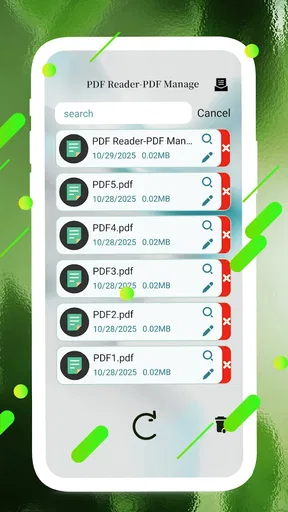
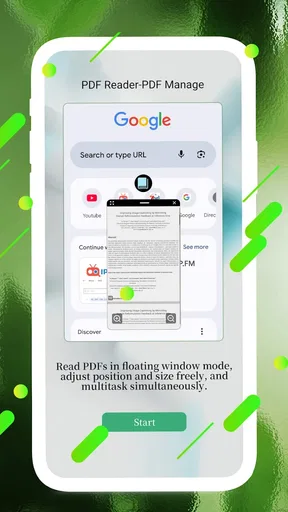
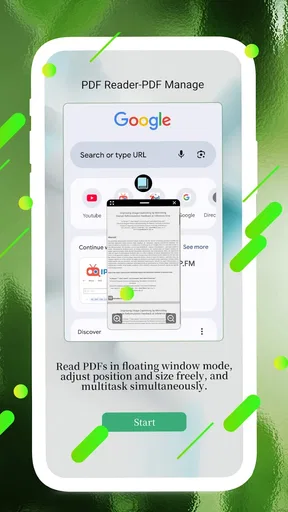
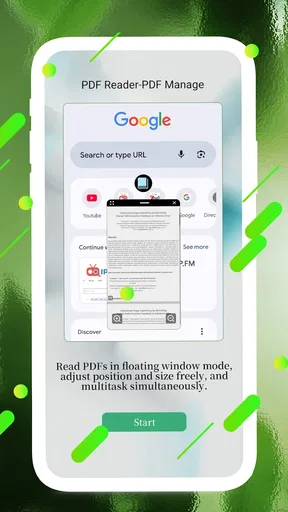
First off, let's talk about the user interface. It's clean, intuitive, and doesn't make you feel like you're trying to navigate a spaceship. You open the app, and everything is right there at your fingertips. But what really caught my attention is how PDF Reader-PDF Manage allows you to not just view, but also annotate PDFs. You can highlight text, add notes, and even draw directly on the document. It's like having a digital notepad that fits right in your pocket.
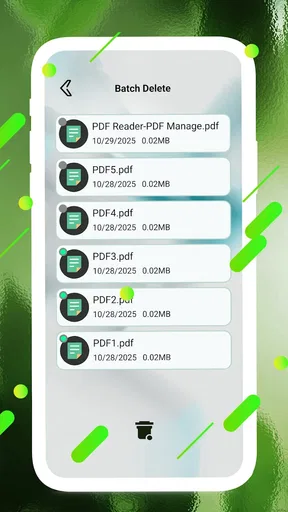
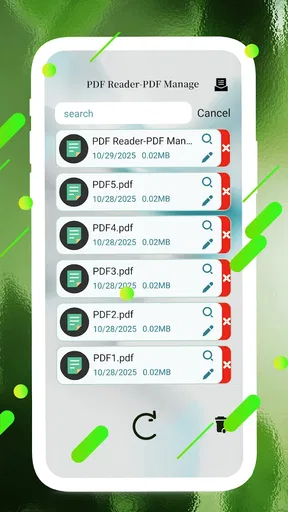
Then there’s the organizational aspect. If you're someone who's constantly drowning in files, this app lets you create folders and sort your PDFs with ease. And the search function? It's blazing fast. Just type in a keyword and boom—your document appears. Seriously, it’s like having your own personal file assistant.
Worth Reading Before You Choose

EA SPORTS FC Mobile 26 Is a Bigger Football Game, but It Takes Time

Flipboard Shows What News Apps Must Do Beyond the Feed

Switching to Android Auto Means Rethinking Your Driving Routine

Google Calendar Makes a Crowded Week Easier to Manage

Ludo King Makes the Most of the Minutes Between Plans

Baby Panda World Brings Quick Play to Modern Phones, but Its Game Library Feels Busy
More Than Just Reading
One of the standout features is the ability to convert other file formats into PDFs. Whether it's a Word document or an image, you can transform them into PDFs in just a few taps. This feature alone makes it a versatile tool for anyone who deals with a variety of document types on a regular basis.
Conversion is especially useful when I need to send a document that should look consistent across devices, but it is worth checking the resulting PDF before sharing. A converted file is not automatically a perfect substitute for the original: layout, spacing, or image placement may matter, particularly in forms or documents that someone else must review. I’d keep the source file when I expect to revise it later, and use the PDF as the convenient version to read or pass along.
And let's not forget about sharing. With just a couple of taps, you can email your PDFs or share them via other apps. If you're someone who frequently collaborates or needs to send documents on the go, this feature is a lifesaver. Plus, it's compatible with both Android and iOS, so you can share with almost anyone.
When the network is part of the handoff
Sharing is where connectivity becomes most noticeable. If a message or email will not send, I would first check whether the connection is working and whether the destination app is available, rather than assuming the PDF itself is damaged. A sensible fallback is to keep the document in its folder and try the handoff again when service returns. That small distinction helps avoid making unnecessary duplicate copies while troubleshooting.
For a real everyday example, imagine receiving a meeting agenda while walking between appointments. I could open it, highlight the points I need to raise, add a short note, and share the annotated copy with a colleague once I have a suitable connection. If sending is delayed, the marked-up file still has a clear purpose: I can use it to prepare, then complete the sharing step later. That is a more dependable workflow than relying on a successful send as proof that the document was saved or organized.
Performance and Reliability
I've used a fair share of PDF readers, and many of them tend to lag or crash, especially when handling large files. But with PDF Reader-PDF Manage, I’ve had a smooth experience. It opens large files without a hitch, and the app itself is pretty lightweight, so it doesn’t hog all the resources on your phone.
My practical advice is to test a document before depending on it for a time-sensitive task. Open the file, check that the pages you need are legible, and make sure any notes or highlights appear as intended. This is particularly worthwhile with a long document or a file you received from someone else. It takes little effort and gives me a chance to catch a problem while there is still time to use another copy or device.
When something goes wrong, I would separate the possible causes instead of immediately repeating every action. If a file will not open, try locating it again through the app or its original source; if a share does not complete, check the connection and the receiving app. If an annotation is important, confirm that it remains visible before closing or sending the document. These are basic recovery steps, but they make phone-based document work less frustrating.
Choosing the right reader for the job
Compared with a basic PDF viewer bundled with a phone or file manager, this app aims to bring several jobs together: reading, marking up, sorting, searching, converting, and sharing. That can save time when I switch among those tasks regularly. A simple built-in viewer may be enough if I only open the occasional attachment, while someone who needs advanced document editing or a tightly integrated cloud workflow may prefer a dedicated service designed around those needs.
It also helps to think about what “manage” means in your own routine. If you mainly need a place to keep documents tidy and make quick notes, folders and annotations are relevant strengths. If your work depends on preserving a strict approval process, collaborating on the same file with a team, or editing complex layouts, I would compare those specific requirements before making this the only tool in my workflow. A convenient all-round reader is not automatically the best specialist editor.
Data-conscious document habits
For documents that contain personal or work information, I would be deliberate about where I send them and which copy I share. The app’s password-protection option can add a layer of protection to files, but that is not a reason to treat every sharing destination as equally appropriate. I’d check the recipient, avoid sending a private document to a broad group by mistake, and keep an unmarked original when annotations are only for my own use.
Converting a file can also create another version to keep track of. I find it useful to name the PDF so it is clear which source or purpose it belongs to, rather than accumulating several files with vague names. That simple routine makes search more effective and reduces the chance of sending an outdated copy. If storage or mobile data is a concern, I would be selective about moving large documents through online services and use the connection only when the task actually requires it.
Security expectations should stay practical. Password protection is useful for controlling access to a file, but it is not the same as a complete privacy strategy. For sensitive material, I would consider the whole path: where the original came from, where I save it, who receives it, and whether I need to remove extra copies afterward. That level of care matters more than assuming one feature covers every risk.
Who will appreciate it—and who may not
This tool makes the most sense to me for people who handle PDFs often but want to do the everyday work on a phone: students reviewing readings, workers checking documents between tasks, or anyone who wants a searchable, folder-based collection with basic markup. The app is free, and its Everyone age rating makes it broadly accessible; Avalown is the developer. It has a 4.1 average rating from around 300 ratings, with 46 reviews, and has passed 500K+ installs.
Those figures offer a little context, but they cannot tell me whether the app matches a particular workflow. If all I do is open a PDF now and then, the viewer already on my device may be simpler. If I regularly edit intricate layouts, need a desktop-style review process, or depend on a particular online storage system, I would choose a tool built around that requirement instead of expecting a general mobile reader to cover everything.
The app is listed as version 1.0, released Dec 1, 2025, and requires OS 10 or later. That makes checking device compatibility a sensible first step before relying on it. I would also try the tasks I actually care about—finding a file, annotating it, converting a sample, and sharing a copy—before moving a large collection into a new routine. A short trial with ordinary, non-sensitive documents can reveal whether its organization suits the way I work.
Final Thoughts
So, should you give PDF Reader-PDF Manage a try? If you ask me, absolutely. It’s user-friendly, packed with features, and reliable. Whether you're a student, a professional, or just someone who wants to keep their digital life organized, this app is worth checking out. Trust me, once you start using it, you'll wonder how you ever managed your PDFs without it.
My recommendation comes with a straightforward qualification: it is most appealing when your PDF tasks are frequent, mobile, and varied enough to benefit from having reading, markup, organization, conversion, and sharing close together. It is less compelling if you only need an occasional viewer or if your work depends on specialized editing and collaboration. For everyday document handling, I’d give it a try with a few real tasks and judge it by how comfortably it fits between receiving a file and putting it to use.
Connectivity verdict
For me, the strongest way to use this reader is to separate working on a document from moving it across the internet. Read, sort, and mark up the file when it is available; rely on a connection when you need to fetch or send it through another service. That makes the app useful in the shifting conditions of mobile life without assuming that every network-dependent step will always work. If that balance matches the way you handle PDFs, it is a practical tool to consider.
Pros
- Smooth interface for easy navigation.
- Supports various file formats efficiently.
- Offers cloud storage integration.
- Customizable reading modes available.
- Annotation tools enhance document interaction.
Cons
- Occasional ads can disrupt usage.
- Limited free features without upgrade.
- Some features require online access.
- Large files may load slowly.
- No built-in text-to-speech function.
FAQs for PDF Reader-PDF Manage
What features does PDF Reader-PDF Manage offer?
PDF Reader-PDF Manage provides a comprehensive suite of features for handling PDF documents. Users can view, edit, annotate, and organize PDFs effortlessly. The app supports text highlighting, digital signatures, and even converting PDFs to other formats. Its intuitive interface makes document management straightforward, catering to both casual users and professionals.
Is PDF Reader-PDF Manage compatible with both Android and iOS devices?
Yes, PDF Reader-PDF Manage is available for both Android and iOS platforms. The app is designed to offer a seamless experience across different devices, ensuring users can access their documents anytime, anywhere. Regular updates are provided to maintain compatibility with the latest operating system versions.
Does PDF Reader-PDF Manage require an internet connection to function?
While PDF Reader-PDF Manage offers many features that can be used offline, such as reading and annotating PDFs, certain functionalities like cloud storage integration and online document sharing do require an internet connection. This ensures users can work efficiently whether they are connected to the internet or not.
Are there any costs associated with using PDF Reader-PDF Manage?
PDF Reader-PDF Manage offers a free version with basic functionalities. However, there might be in-app purchases or a subscription model for advanced features such as cloud storage integration, premium editing tools, and ad-free experience. It's advisable to review the pricing details within the app store before downloading.
How secure is PDF Reader-PDF Manage for handling sensitive documents?
Security is a priority for PDF Reader-PDF Manage. The app employs encryption to protect documents and offers features like password protection for individual files. Users should ensure they download the app from official sources to avoid security risks and check for regular updates to enhance data protection measures.


